
How to Setup Packing Rules
Packing rules control how products in an order are grouped into packages before shipment. For an overview of why packing rules matter and the available methods, see the main Packing Rules Guide.
Step 1: Accessing the Packing Rules Screen
Packing rules can be accessed in one of two places:
- In your eCommerce Platform
- Log in to your platform
- Open the MachShip app
- Go to the Settings menu and select Packing Rules
- In a MachShip (Fusedship) Login
- Log in to MachShip
- Navigate to the Packing Rules tab
(This location may vary slightly by platform.)
Step 2: Add a New Packing Rule
- Click Add Packing Rule

Step 3: Name and Describe the Rule
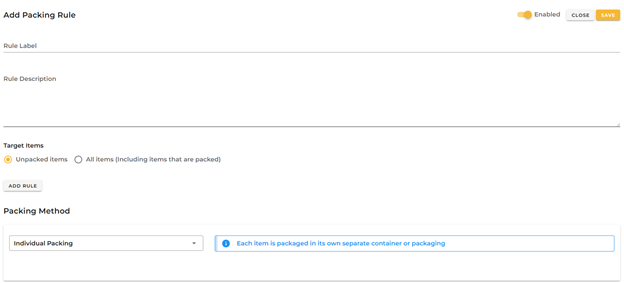
- Packing Rule Name
We advise that you use a clear name and descriptive naming to assist with locating and evaluating rules in future, such as:
- Clothing – Weight Based Packing
- Heavy Items – Individual Packing
- Standard Items – Boxes
- Description (Optional)
Optionally add a description to explain when this rule should be used. This is helpful when you have multiple rules.
Step 4: Define Rule Conditions
Use filters to specify which products this rule applies to.
Common filters include:
- Item Type (e.g., Carton, Pallet) – A full listing of valid item types can be found here.
- Total Order Weight (e.g., over 20 kg)
- Length (e.g., longer than 1200 mm)
- Specific SKUs
Products that do not match this rule will move on to the next rule in order.
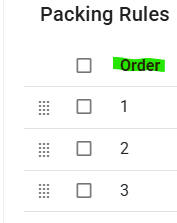
The rule priority matters — rules are processed from top to bottom.

Tip: Packing rules are applied in priority order working from top to bottom, so rule order is important.
Step 5: Select a Packing Method
Choose one of the packing methods below for this rule:
Individual Packing — Each item is packed into its own package.
Weight Packing — Items are grouped based on weight limits.
Dimensional Packing — Items are grouped based on dimensions and weight.
Quantity Packing — Items are grouped based on a quantity count.
Add to Existing Pallet, Skid or Crate — Items added to an existing pallet/crate.
Do Not Pack (Ignore) — Items excluded from packing.
Please see Packing Rules for more details information on the different Packing Methods.
Step 6: Save Your Rule
- Review the rule settings
- Click Save
By default, a new rule is enabled. While testing or refining your setup, you can disable the rule to prevent it from being applied until you’re ready.

Helpful Tips
- Packing rules do not need to be perfect — they should reflect realistic packing behaviour for your operation.
- Ensure accurate product dimensions and weights for best results.
- Start simple and refine your rules over time as you evaluate outcomes.