
How to Setup Shipping Option
For a general overview of MachShip’s Checkout Shipping Options, refer to this link.
If you already understand how checkout options work and want to set up or update them, continue below.
Step 1: Open Shipping Options
Shipping options can be accessed in one of two places:
- In your eCommerce Platform
- Log in to your platform
- Open the MachShip app
- Go to the Live Rate Settings menu and select Shipping Options tab
- In a MachShip (Fusedship) Login
- Log in to MachShip
- Navigate to the Shipping Options tab
(This location may vary slightly by platform.)
Step 2: Add Shipping Option
- Click Add Shipping Option

Step 3: Configure the Shipping Option
When the Add Shipping Option screen opens, you’ll start on the Configuration tab.
CONFIGURATION TAB
Label
- Enter the name customers will see
- Example:
- Standard Delivery
- Express Shipping
- Bulky Item Delivery
Tip: Keep labels short and easy to understand.
Description (Optional)
- Add extra information to explain the shipping option
- This may be shown to customers, depending on your setup
Example:
Delivered within 3–5 business days.
Question IDs (Surcharge Triggers)
Question IDs are used to link shipping options and surcharges to customer selections.
You can select one or more Question IDs when setting up a Shipping Option.
| Question ID | Question | What It’s Used For |
| [7] Hydraulic Tailgate required | Does the delivery vehicle need a tailgate? | Applies tailgate / liftgate surcharge |
| [13] Is this a residential delivery? | Is the delivery address residential? | Applies residential delivery surcharge |
| [56] Is this a residential pickup? | Is the pickup address residential? | Applies residential pickup surcharge |
| [36] Hand Unload | Does freight need to be unloaded by hand? | Applies hand unload surcharge |
| [58] Book In Required | Is a delivery booking required? | Applies booking / appointment surcharge |
| [8] Crane Truck | Is a crane truck required? | Applies crane truck surcharge |
| [14] Authorised To Leave | Can the driver leave freight without a signature? | Delivery instruction (usually no surcharge) |
Manage Conditions
- Click Add Condition
- Choose:
- Field (what to check)
- Operator (how to compare)
- Value (the rule)
Common examples:
- Order weight greater than 20kg
- Delivery postcode starts with 3
- Order total is over $100
- Specific product category is in the cart
How Conditions Work
- The shipping option will appear if ALL of the conditions are true
- If no conditions are added, the shipping option is always available
Tip: Use conditions to hide shipping options that don’t apply to certain orders.
CARRIERS TAB
Carriers and services can be assigned per shipping option. By default, all carriers and services are quoted.
To add specific carriers and services, select a carrier and service, then click ADD CARRIER / SERVICE.

PRICING RULES TAB
In here this is where you can add markup or discount for a specific shipping option.
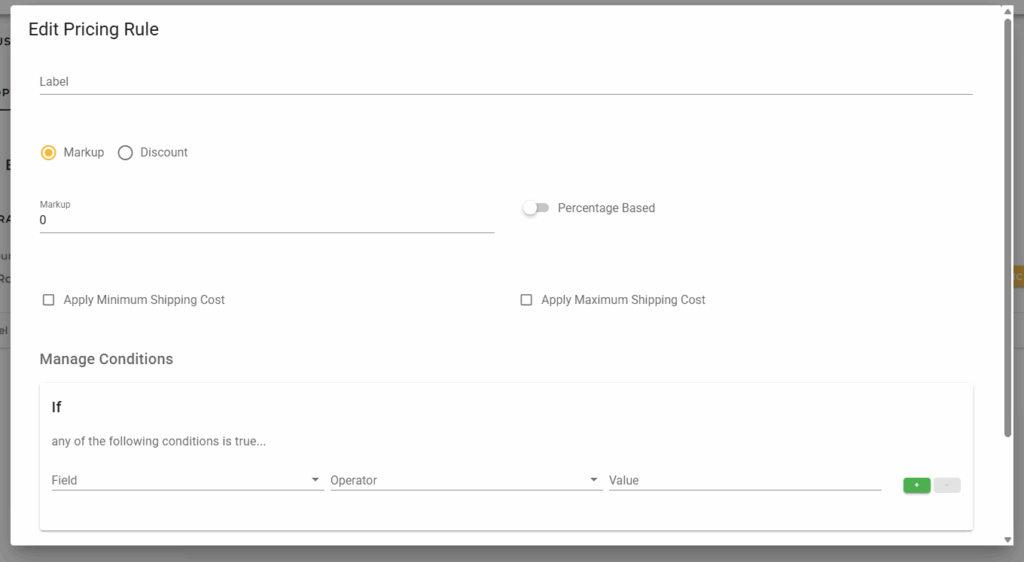
Label:
A descriptive name for the pricing rule.
This is for internal reference only and helps identify the purpose of the rule.
Mark up or Discount:
Choose whether the rule will:
- Markup – increase the shipping cost
- Discount – reduce the shipping cost
Value:
The amount to apply to the shipping cost.
When disabled, the value is treated as a fixed amount.
Apply Minimum Shipping Cost:
When enabled, ensures the final shipping cost does not fall below the specified minimum amount after the rule is applied.
Apply Minimum Shipping Cost:
When enabled, ensures the final shipping cost does not exceed the specified maximum amount after the rule is applied.
Conditions:
Define when this pricing rule should be applied.
The rule will be triggered if any of the configured conditions are met.
When Percentage Based is enabled, the value is treated as a percentage.
Parameters:
Each condition consists of the following:
- Field
The attribute to evaluate. - Operator
The comparison logic to apply (e.g. equals, greater than, contains). - Value
The value the field is compared against.
Use the + button to add additional conditions or – to remove them.